 CopyPal
How to see clipboard history on a Mac
You copied a link an hour ago, then copied something else, and now the link is gone. That is how the Mac clipboard has always worked: it holds one thing. Here is what macOS gives you on its own, and how to keep everything you copy.
Where is the clipboard on a Mac?
There is no clipboard app on a Mac, which surprises people coming from Windows. The clipboard is invisible. It holds whatever you copied last, and it hands that over when you press ⌘V.
You can peek at it. Open Finder, click the Edit menu and choose Show Clipboard. A small window shows the current item, and only the current item. Copy something new and the previous content is gone for good.
Does macOS have a clipboard history?
For most of its life, no. Every copy replaced the one before, and there was no way back.
That changed a little with macOS 26 Tahoe, which added a clipboard history inside Spotlight. It is off by default. To turn it on, open System Settings, go to Spotlight and enable results from the clipboard. Press ⌘Space to open Spotlight, then ⌘4 to jump to the clipboard section and scroll through recent copies.
It is a welcome addition, and for a quick "what did I just copy" it works. But it is built to be short-lived: items are kept for a few hours, not days, and the list is a flat set of recent copies with no memory of where anything came from.
What the built-in option leaves out
- Time. A few hours is fine for this afternoon. The address you copied on Monday is gone by Tuesday.
- Source. Nothing tells you which app or which web page a snippet came from, so you cannot jump back to it.
- Screenshots. You cannot search for a screenshot by the words inside it.
- Organisation. No pinning, no groups, no names, no shortcuts for things you paste every day.
- Older Macs. Anything before macOS 26 has no history at all.
If you copy and paste for a living, and most office work is exactly that, you want a proper clipboard history. That means a clipboard manager.
How to see your full clipboard history with CopyPal
CopyPal is a clipboard manager for Mac. It runs in the menu bar and records every text, link, image and screenshot you copy, so your history is never one item deep again. Here is the whole workflow.
- Install it. Download CopyPal from copypal.app, drag it into Applications and open it. It asks once for Accessibility permission, which it needs to paste for you.
- Copy as usual. Nothing changes about how you copy. Every ⌘C is remembered.
- Press ⇧⌘V. The panel slides up over whatever you are working in and lists your history, newest first.
- Pick and paste. Use the arrow keys or type a few letters to search, then press Return. The item is pasted straight into the app you were in.
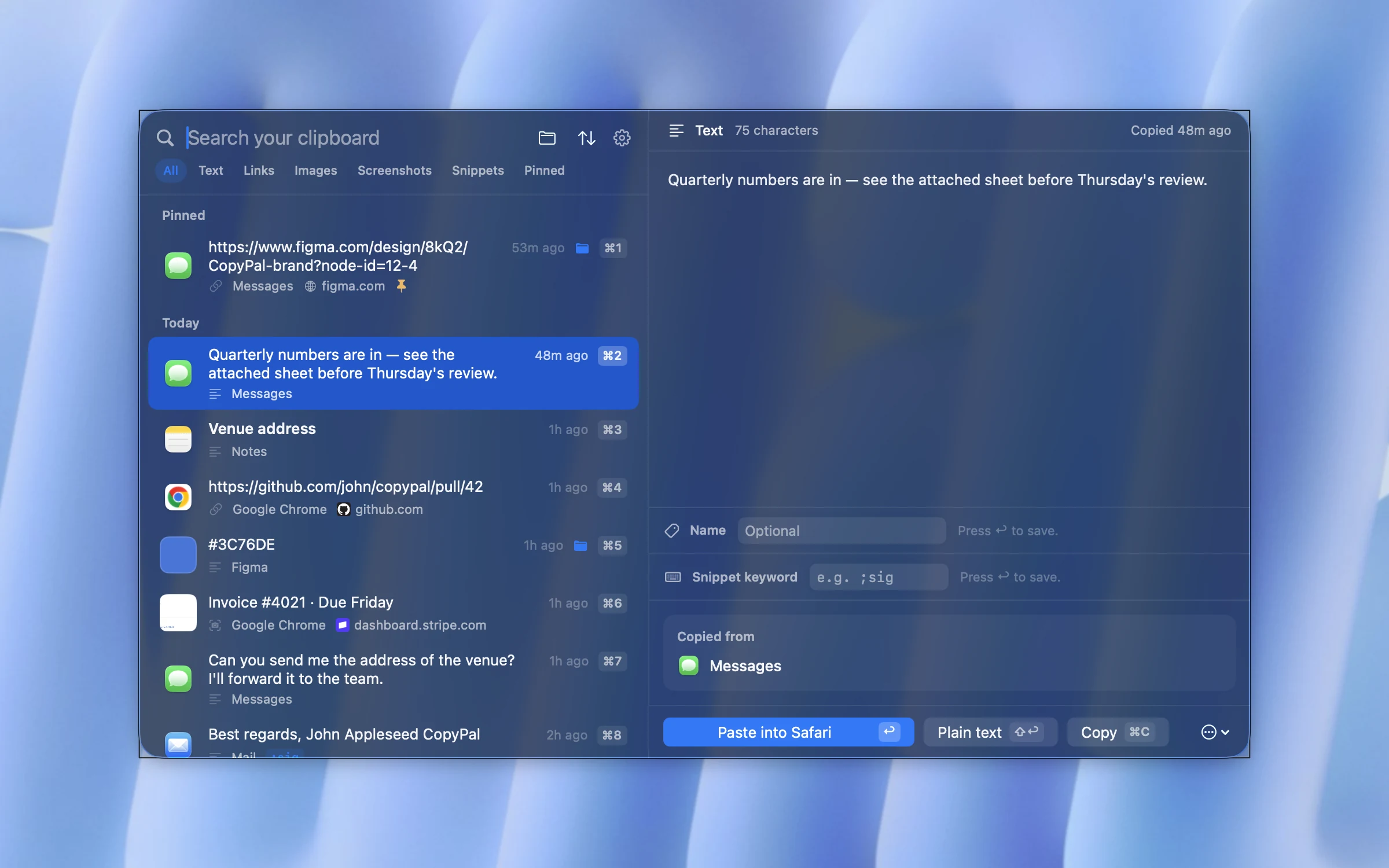
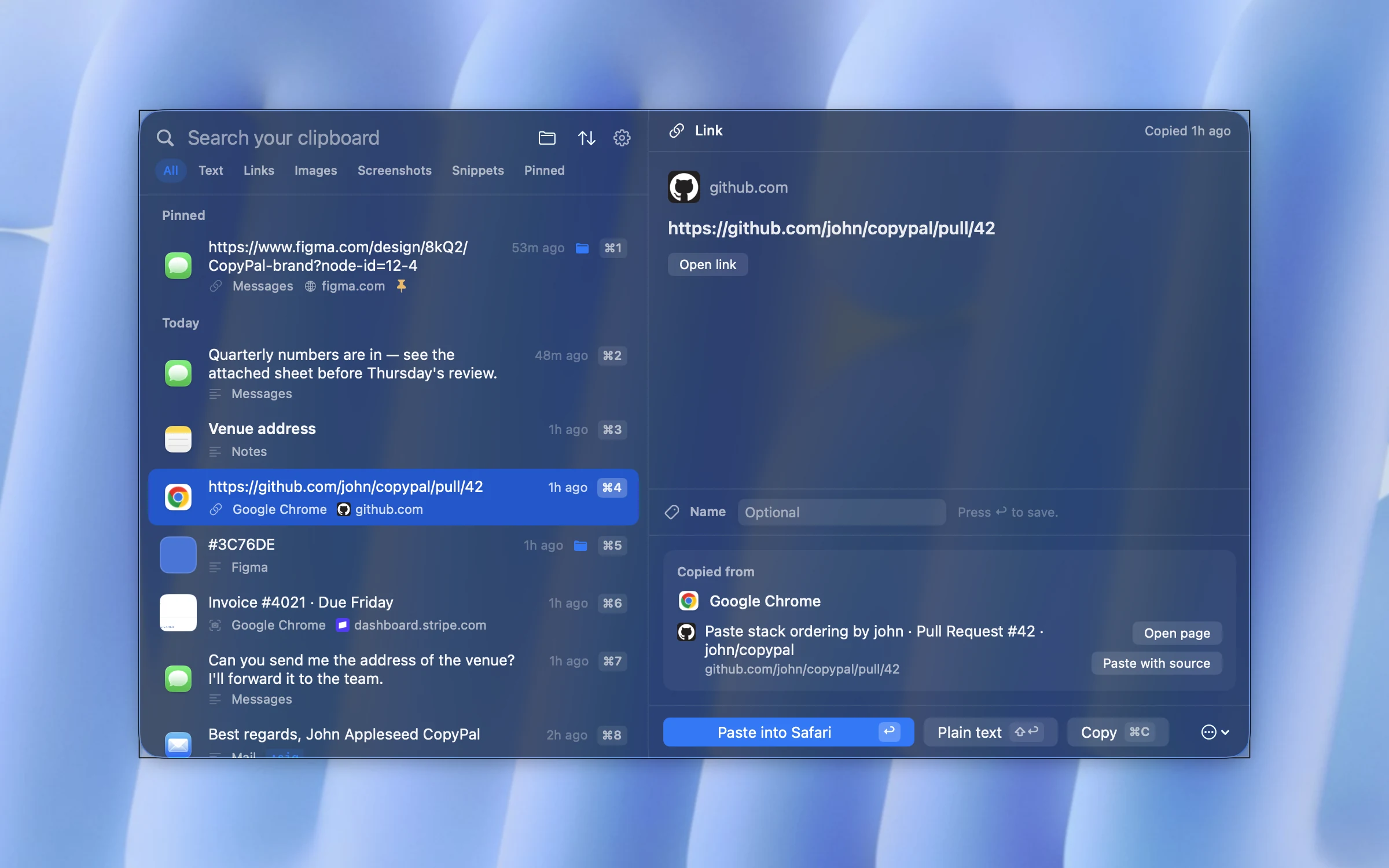
It remembers where things came from
This is the part no built-in feature offers. Every item is filed with the app it came from, and for anything copied from a browser, the page title and address as well. Select a link and the preview shows the page it was copied from, with an Open page button that takes you straight back there.
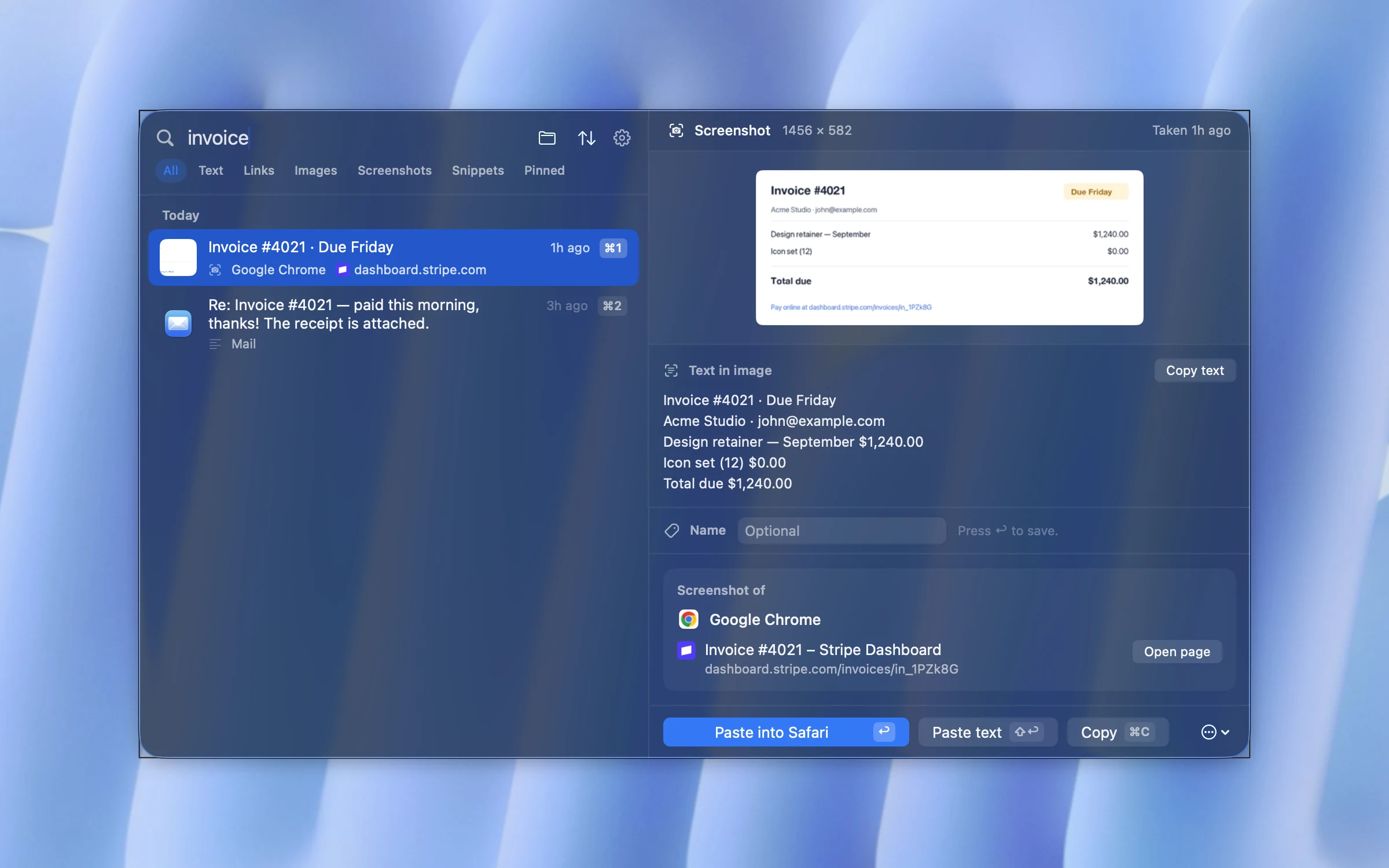
Search everything, even inside screenshots
Type a word and the list narrows instantly. That includes screenshots: CopyPal recognises the text in every image on your Mac, so searching for "invoice" finds the screenshot of an invoice, not only the emails about it. Nothing is uploaded anywhere to make that work.
Paste without leaving your app
The panel never takes you away from what you were doing. Choose an item and CopyPal pastes it where your cursor was. Hold ⇧ when you press Return to paste as plain text, which strips fonts and colours. Press ⌥↩ to paste the text together with the page title and address, like a citation.
Keyboard shortcuts worth learning
| Shortcut | What it does |
|---|---|
| ⇧⌘V | Open the clipboard history panel |
| ↑ ↓ then ↩ | Pick an item and paste it |
| ⌘1 to ⌘9 | Paste one of the nine most recent items directly |
| ⇧↩ | Paste as plain text |
| ⌥↩ | Paste with the source (page title and address) |
| ⌘P | Pin an item so it stays at the top |
| ⌘⌫ | Delete the selected item |
What about privacy?
A clipboard history is only as good as its privacy. CopyPal keeps your history in a local database on your Mac and never uploads it. Password managers are skipped by default, anything an app marks as confidential is skipped too, and you can add any app or website to an ignore list so copies made there are never recorded. Pause recording with one shortcut when you need to.
Frequently asked questions
Does a Mac have a clipboard history?
Not by default. macOS keeps only the last thing you copied. On macOS 26 Tahoe you can turn on a short clipboard history in Spotlight, which keeps recent copies for a few hours. For a full, searchable history you need a clipboard manager such as CopyPal.
Where is the clipboard on a Mac?
There is no clipboard app. Open Finder, then choose Edit and Show Clipboard to see the single item currently held. It shows what you last copied and nothing before it.
How do I see my clipboard history on a Mac?
Install a clipboard manager. With CopyPal you press ⇧⌘V and a panel lists everything you have copied, newest first, with the app and web page each item came from. Type to search and press Return to paste.
Is clipboard history safe?
With CopyPal everything stays in a local database on your Mac. Nothing is uploaded, password managers are skipped by default, and you can add any app or website to an ignore list.